Airbnb Message Templates: 6 Replies for Each Guest Moment
Airbnb message templates for booking, arrival, and checkout help you answer common questions with clear replies you can personalize and schedule.
By Airbnb Host Bundle by Cosmo Suite · Editorial policy
Published · 9 min read
Airbnb message templates help you answer recurring guest questions without writing each reply from scratch. Save a short quick reply for manual use, and schedule messages that belong at a clear point in the stay. Put each fact where the guest will look for it: in the listing, reservation, welcome book, sign, or message.
This guide gives you six adaptable messages, a simple timeline, and a setup check for Airbnb scheduled quick replies. Replace each bracketed detail with information for your listing. Check every automatic message before it is sent, especially when a reservation is short or made at the last minute.
For hosts who also want matching print materials, Airbnb Host Bundle's editable welcome books and guest letters can cover the details guests need inside the property.
Airbnb Message Templates at a Glance
- Use a quick reply for a question you answer more than once.
- Schedule only details that make sense at that point in the stay.
- Keep access codes and other stay-specific details in the reservation tools.
- Review the scheduled message timeline for short stays and last-minute bookings.
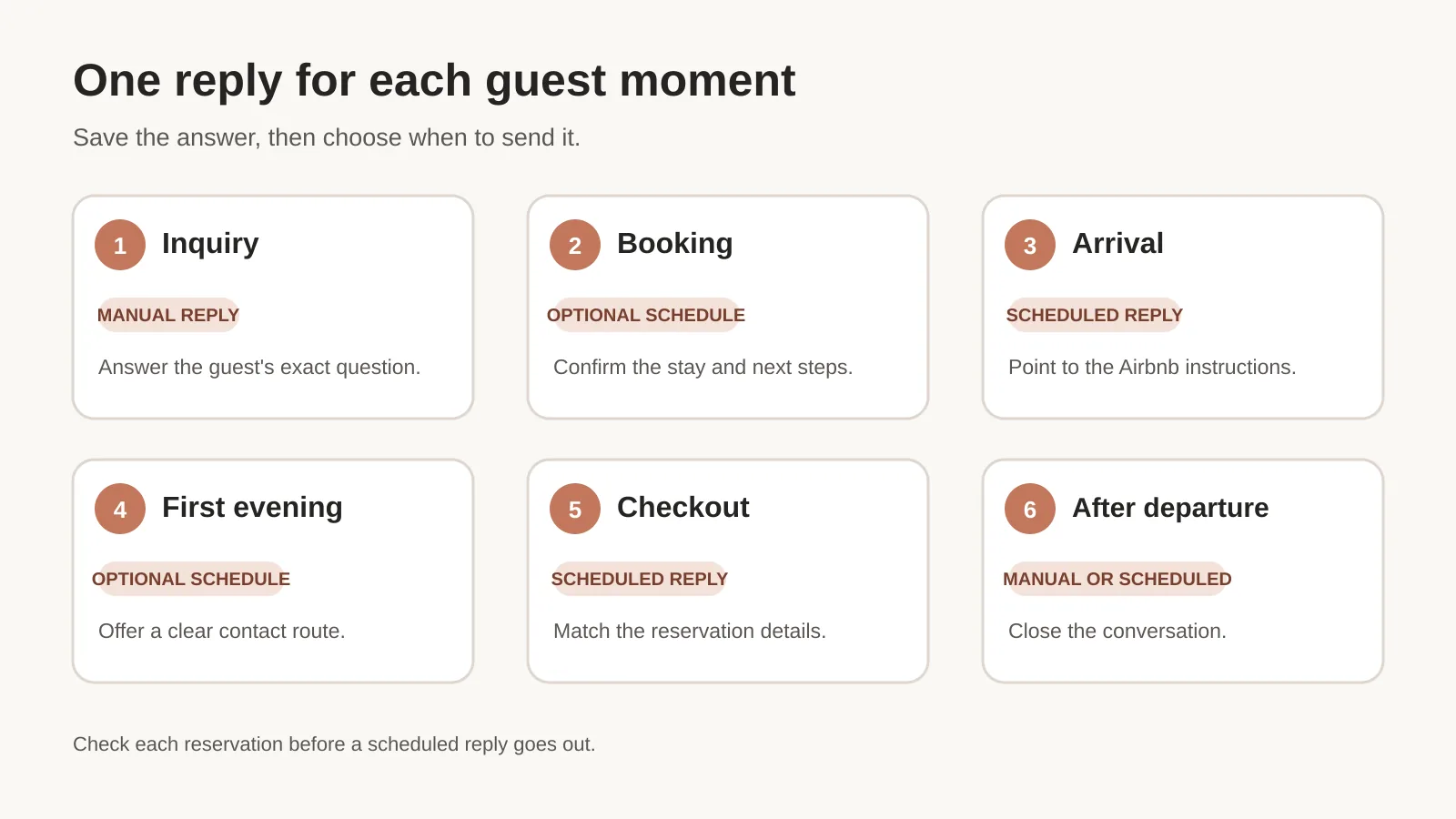
Airbnb message templates for six guest moments
| Guest moment | Use this message | Best delivery |
|---|---|---|
| Inquiry | Answer the guest's exact question, then confirm where to check dates or listing details. | Manual quick reply |
| Booking confirmed | Thank the guest and point to the arrival details they will need later. | Scheduled after reservation, if useful |
| Before arrival | Share the arrival guide and a way to reach you if an instruction is unclear. | Scheduled before check-in |
| First evening | Ask whether the guest found the space and flag how to report an urgent problem. | Scheduled after arrival, if useful |
| Before checkout | Restate the listed checkout time and the requests shown in the reservation. | Scheduled before checkout |
| After departure | Thank the guest and close the conversation. | Manual or scheduled after checkout |
Airbnb's quick replies can be sent manually or scheduled around triggers such as a new reservation, check-in, or checkout. Scheduling is optional. A message should answer one need, and every property detail should match the listing. Airbnb's Resource Center lists a booking thank-you, a check-in reminder, and a checkout reminder among its examples (Airbnb Resource Center, checked October 26, 2026).
Why Trust This Article
The Cosmo Suite team that made Airbnb Host Bundle prepared this guide. We sell templates for Airbnb hosts, so product links below are commercial. The Airbnb Help Center pages linked here were checked on October 26, 2026. Read our about page and editorial policy for details about the publisher and corrections.
Six Airbnb message templates you can adapt
Keep each message to one job. Fill in the brackets from your actual listing and reservation. Remove any line that does not apply. Airbnb's details feature can fill some saved fields from listing and reservation data, but a detail may show as unavailable if its source information is missing. Preview the result before saving a template (Airbnb Help Center).
1. Reply to an inquiry
Hi [guest first name], thanks for checking. [Direct answer to the question.] The listing has [relevant detail]. You can review the available dates and full listing information on Airbnb. Let me know if you need a detail that is not on the listing.
Use this as a manual quick reply, then edit the first line to answer the question at hand. If the guest asks about parking, answer parking. If they ask about a bed, confirm the exact sleeping arrangement in the listing. Do not send a generic welcome paragraph that makes the guest search for the answer.
For an inquiry-specific reply, see these six Airbnb pre-booking message examples. Keep the booking and its details on Airbnb, where the reservation record can show what was agreed.
2. Confirm the booking
Hi [guest first name], thanks for booking [listing name] for [check-in date]. Your reservation is confirmed on Airbnb. I will share the arrival steps there before check-in. If your plans change, please send me a message in this thread.
The reply confirms the reservation and sets an expectation for the arrival instructions. It does not need to repeat the address, door code, or every house rule. Keep time-sensitive access details in the guest's reservation or another secure guest-specific place, not in a reusable template.
Airbnb lets hosts schedule quick replies for events such as a new reservation. If you use that trigger, check how the message reads for each listing that uses the template. A line about a driveway, shared entry, or local transit may be wrong for another property.
3. Send the arrival reminder
Hi [guest first name], your stay at [listing name] starts [check-in date]. Your Airbnb reservation has the check-in instructions and arrival details. Please review them before you travel. If you cannot find the entrance or a step is unclear, message me here.
Airbnb says guests receive detailed check-in instructions 48 hours before arrival, and the reservation is where guests can find their check-in details. A reminder can point them to that information rather than creating a second copy that may become outdated (Airbnb Help Center: How to check in, checked October 26, 2026).

If your listing has a printed welcome book, use it for details that stay the same between reservations: how to use an appliance, where to find supplies, or nearby recommendations. Put the actual arrival path in the reservation. Keep the in-home guidance there without turning the arrival message into a manual.
4. Check in after arrival
Hi [guest first name], I hope you found [listing name] without trouble. If anything is missing or an appliance is unclear, send me a message here and tell me what you need. For an urgent issue, please call [approved contact method].
Use this when you can respond to replies. Do not promise round-the-clock coverage if you cannot provide it. If you want to schedule this note, choose a trigger that leaves enough time for the guest to arrive, and make sure the contact method is one you monitor.
Airbnb's scheduled quick replies timeline lets you review what was sent, what was skipped, and what is coming next for a reservation. That gives you a chance to remove a check-in message if the guest already told you they arrived or raised an issue.
5. Remind the guest about checkout
Hi [guest first name], a reminder that checkout is [checkout time] on [checkout date]. Your reservation lists these checkout requests: [requests that apply]. Please message me here if you need to ask about a different time.
Match this note to the listing and reservation. Airbnb says checkout information appears in the reservation, including the checkout time and requests added by the host. It also says the checkout instructions should match those details (Airbnb Help Center: How Airbnb checkout works, checked October 26, 2026).
Keep the request short and reasonable. Airbnb's ground rules say hosts may not charge a guest fee for missing a specific cleaning or checkout task. Do not add a penalty or a task that is absent from the reservation (Airbnb Help Center, checked October 26, 2026).
6. Thank the guest after checkout
Hi [guest first name], thank you for staying at [listing name]. I hope your trip home goes smoothly. If you noticed something that would help the next guest, you can reply here. Thanks again for choosing our place.
A thank-you can be sent manually or scheduled, but a human check is useful if the stay had an open issue. Make sure the message does not ask for a particular review or imply that a guest should change an honest one. Keep the close friendly and brief.
Set up Airbnb scheduled quick replies without duplicate messages
Airbnb lets you create a quick reply, choose the listings it applies to, and set a trigger in the Messages settings. A saved quick reply is not scheduled until you choose when it should send. The setup labels can vary by device, so use Airbnb's current Help Center steps for the screen you see.
- Open Messages and go to Settings.
- Open Manage quick replies and create or select a reply.
- Add a short message and choose only the listings where every detail applies.
- Select Scheduled for and choose an event and time that fit the guest moment.
- Save the reply, then open a reservation's scheduled quick replies timeline to check the upcoming messages.
Airbnb's Help Center says scheduled quick replies use the listing's time zone. It also says some messages may be skipped for last-minute bookings or short stays unless the host turns on the relevant option. When that option is on, a message whose normal trigger has passed can be sent at booking or at the listing's check-in time, depending on the case. Read the current setting before enabling it, then review a short reservation in the timeline.
| Check before saving | What to confirm |
|---|---|
| Placeholder details | Every field exists in the listing or reservation and displays correctly. |
| Listing selection | The message has no property-specific directions that are wrong elsewhere. |
| Timing | The trigger leaves the guest enough time to act on the message. |
| Short stays | A before-checkout reminder will not arrive after checkout. |
| Last-minute bookings | Decide whether a late message should be skipped or sent at another time. |
| Timeline | Review the reservation's upcoming and past messages, and edit or skip repeats. |
Airbnb notes that scheduled replies apply to current and upcoming reservations for the selected listing, and that details depend on information completed in the listing. Review every reservation before you reuse the message.
Put each guest answer where it will be useful
The same fact can appear in more than one place, but the guest should not have to compare conflicting versions. Keep the arrival instructions in the Airbnb reservation. Put stable appliance and house information in the welcome book. Place a short reminder beside the item it explains, such as a thermostat or coffee maker. Use a message to point to the right information at the right time.
Keep messages short. Start with the answer the guest needs now. Add a link or location only when it helps them find the next detail. When a guest asks the same question twice, check whether the answer is missing from the listing or hard to find in the property.

For a small host who wants matching print and digital materials, Airbnb Host Bundle has welcome books, signs, guest letters, and checklists. The Airbnb templates guide maps materials to the moments when a guest uses them. The bundle provides editable materials; Airbnb handles message scheduling inside its own platform.
Use Airbnb Host Bundle for print materials
Airbnb Host Bundle's 500+ editable host templates include a printable welcome book, an interactive digital welcome book, house signs, cleaning and inventory checklists, and welcome letters. The files are editable in Canva and Google Sheets, and the bundle is an instant download for use across listings. Check the contents list for the format of each item. Airbnb handles quick reply scheduling in its own messaging tools.
When a quick reply is enough, and when software helps
Airbnb's own quick replies can cover repeated messages for a host managing a small number of listings. They let you save a short response and schedule it around selected events. For a host who needs team workflows, cross-platform inbox management, or messaging across many listings, a property-management system may be a better fit. Choose based on the work you need to manage, not on a claim that templates can replace a full operations tool.
The message timeline still needs attention. Check the reservation before arrival, then look at the upcoming scheduled replies when plans change. A guest may have already received directions in a conversation. A short stay may make a reminder mistimed. The ability to skip or edit an upcoming message is useful only if you review it.
Write one answer per guest moment. Verify the listing details, choose whether to send the reply manually or schedule it, and remove anything the guest can already see in the reservation. That keeps the message clear and makes the right information easier to find.
Frequently asked questions
Can Airbnb messages be scheduled?
Yes. Airbnb lets hosts schedule quick replies for events such as a new reservation, check-in, or checkout. You can review a scheduled message and skip, edit, or send it early before it goes out.
How do I write a good Airbnb welcome message?
Thank the guest, confirm the arrival date or check-in window, and point to where they can find the instructions. Keep the message short and avoid repeating details that are already easy to find in the reservation.
What should I include in an Airbnb checkout message?
State the checkout time and any applicable checkout requests that match the listing and reservation. Keep the message consistent with the details guests see in Airbnb, and do not add a fee for a missed request.
Do Airbnb quick replies send automatically?
Saved quick replies are message templates that you can send while chatting. They are not scheduled by default. To send one automatically, set a schedule for the reply in Airbnb's messaging settings.
Can I use the same Airbnb message template for every listing?
You can apply a scheduled quick reply to selected listings, but check every detail first. Parking, access, quiet hours, and checkout instructions can differ by property.
What if a scheduled Airbnb message repeats information?
Review the scheduled quick replies timeline for the reservation. Airbnb lets you edit, skip, or send an upcoming message early, so remove details the guest already received.